

High-End CCTV Cameras for Business in UAE: Features, Complete Systems & How to Choose a Video Surveillance Company
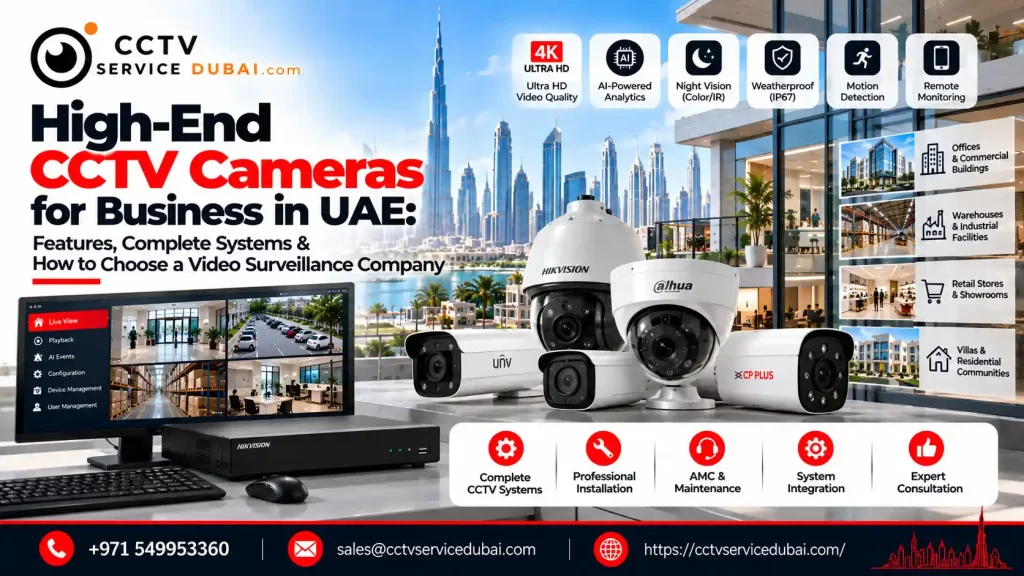
Protecting a business requires more than installing cameras at entrances. Offices, warehouses, retail outlets, hotels, and industrial facilities need surveillance systems that provide clear footage, reliable recording, intelligent alerts, and secure access to video. A high end CCTV camera can offer advanced image processing, AI-powered analytics, better low-light performance, and integration with access control and other security systems. However, the camera alone does not determine the quality of the installation. The recorder, storage, network, software, and installation design must also work together. This guide explains how to choose a high end CCTV camera for UAE businesses, compare professional camera brands, plan a complete surveillance system, estimate the requirements, and select a suitable video surveillance company. What Makes a High-End CCTV Camera Different? A high end CCTV camera is designed to meet demanding surveillance requirements where image quality, reliability, analytics, and system integration matter. Depending on the model, features may include: High-resolution video, including 4K Wide Dynamic Range (WDR) Advanced infrared or low-light imaging AI-based human and vehicle detection Intrusion and line-crossing analytics Motorized or optical zoom Weather and impact protection Secure network communication Integration with professional video management software Not every installation needs all these features. A premium fixed camera may be suitable for a reception area, while a large warehouse perimeter may benefit more from long-range zoom or specialized analytics. The right high end CCTV camera is the one that captures the required evidence reliably under the actual conditions at your property. Which High-End CCTV Camera Types Should Businesses Consider? Different camera designs support different surveillance objectives. Camera type Suitable applications Main advantage Dome camera Offices, corridors, reception areas Compact design and flexible indoor placement Bullet camera Building perimeters, gates, loading areas Directed viewing for defined outdoor zones PTZ camera Large parking areas and industrial compounds Remote pan, tilt, and optical zoom Turret camera Shops, offices, and residential areas Flexible positioning and suitable low-light options Fisheye camera Open indoor areas and selected lobbies Wide panoramic coverage ANPR camera Parking entrances and vehicle checkpoints Automatic number plate recognition on supported models Choosing a high end CCTV camera starts with identifying what each camera must achieve: detect activity, observe behaviour, recognize a person, or capture sufficient detail for identification. For a large property, combining fixed cameras with PTZ cameras may provide more consistent coverage than relying on one movable camera. Which CCTV Brands Are Worth Comparing in the UAE? The best brand depends on your budget, operating environment, integration requirements, and long-term support needs. Hikvision Hikvision offers a broad range of professional cameras and recording equipment, including AI-enabled cameras, PTZ systems, network video recorders, and centralized management solutions. It is worth considering for commercial projects that need a broad product selection and an integrated camera-and-recorder ecosystem. Dahua Dahua offers professional IP cameras, AI analytics, PTZ cameras, recorders, and video management solutions. Its product ranges include cameras designed for perimeter protection, human and vehicle detection, and low-light applications. Specific capabilities depend on the model. Axis Communications Axis is worth evaluating for projects that prioritize network-camera security, open-platform integration, and long-term device lifecycle management. Its AXIS OS lifecycle documentation describes its software support tracks and security-update approach. Hanwha Vision and other enterprise brands Hanwha Vision and other professional manufacturers may also suit projects requiring particular analytics, video management integrations, or specialist camera types. Important: There is no universally best manufacturer. Compare equivalent models, test important camera views, verify local warranty support, and check compatibility with your existing infrastructure before selecting a brand. How to Choose a Commercial Video Surveillance System A commercial video surveillance system consists of more than cameras. It should be designed around the site’s security risks and the information that operators need to capture.A complete system may include: Cameras: Fixed, PTZ, thermal, or specialized cameras selected for each location. Recording equipment: An NVR or compatible recording platform. Storage: Hard drives or supported storage systems sized for the required retention period Network infrastructure: Ethernet cabling, PoE switches, fiber links, and suitable network equipment. Video management software: A platform for viewing live feeds, reviewing recordings, managing users, and responding to events. Security and access controls: Protected user accounts, permissions, and secure network configuration. For larger sites, a commercial video surveillance system may also connect with access control, intrusion alarms, intercoms, or other business security systems.Planning these components together reduces compatibility problems and makes the completed installation easier to manage. What Features Should You Look for in a High End CCTV Camera? Before purchasing a high end CCTV camera, prioritize the features that matter for your property. 1. Resolution and lens A 4K camera can capture more pixels than a Full HD camera, but resolution alone does not guarantee identification. The lens, viewing distance, lighting, and camera angle also affect usable image detail. 2. Night vision and low-light performance For UAE outdoor sites, evaluate nighttime images rather than relying only on daytime demonstrations. Check infrared range, low-light sensitivity, WDR, and how the camera handles glare from headlights or bright entrances. 3. AI detection AI analytics can help distinguish relevant human or vehicle activity from ordinary movement. Supported models may offer person detection, vehicle classification, intrusion detection, line crossing, or automatic tracking. 4. Weather protection Outdoor equipment should have a suitable environmental rating. Dubai’s SIRA technical specifications require outdoor cameras in covered installations to have at least IP66 protection or suitable housing with equivalent protection. Confirm the requirements applicable to your project. 5. Cybersecurity and software support A network-connected camera should have strong authentication, secure configuration, and a clear firmware support path. Keep firmware updated and restrict access to authorized users. Choosing a high end CCTV camera with excellent specifications is not enough if the device is poorly configured or no longer receives appropriate security support. What Is the Best Video Surveillance System for Business? A video surveillance system for business should match the property’s size, operating hours, security risks, and recording requirements. For example: Retail stores: Focus on entrances, checkout counters, sales floors, and stockrooms. Corporate offices: Cover entrances, reception areas, access-controlled
Best CCTV Monitors in UAE (2026): 24/7 Surveillance Monitors Compared by Size, Inputs & Price in AED

Choosing the best CCTV monitors in UAE involves more than selecting a screen that displays your camera footage. The monitor should match your DVR or NVR output, provide clear images, fit your monitoring desk or control room, and suit the number of hours it will remain switched on.For a home, a standard 22- or 24-inch monitor may be sufficient. For a security control room, warehouse, retail store, or building monitoring station that operates around the clock, a monitor specifically rated for 24/7 operation is worth considering.This guide compares CCTV monitor options by screen size, inputs, features, and indicative UAE prices. It also explains when you need a surveillance-grade monitor instead of a standard computer display or television. What Are the Best CCTV Monitors in UAE? For dedicated CCTV monitoring, Hikvision surveillance-grade monitors are worth comparing because selected models are specified for continuous operation. Dahua also offers affordable Full HD monitors with HDMI and VGA inputs for compatible DVRs and NVRs. Here are some options to consider: Hikvision 22-inch surveillance monitor: A compact option for desks and small security rooms. Hikvision 24-inch surveillance monitor: A practical size for everyday CCTV monitoring. Hikvision 27-inch surveillance monitor: Offers a larger display for reviewing multiple camera feeds. Hikvision 32-inch or 43-inch surveillance monitor: Suitable for viewing from farther away or displaying larger camera grids. Dahua LM24-A200Y 23.8-inch monitor: A budget-friendly Full HD display with HDMI and VGA inputs; its official specifications do not explicitly identify it as a 24/7-duty model. Retailers list Hikvision surveillance-grade monitors from around AED 250 for a 22-inch model and AED 360 for a 24-inch model. Larger listings include AED 430 for 27 inches, AED 635 for 32 inches, and AED 989 for 43 inches. These are retailer-specific prices and the exact model and specifications should be verified before purchase. (Costless UAE monitor listings) CCTV Monitor Comparison: Size, Inputs & Price in AED The following comparison combines advertised UAE retail prices with manufacturer specifications. Prices are indicative, may change, and do not necessarily refer to identical model variants. Monitor option Resolution Inputs Indicative UAE price Best use Hikvision 22-inch surveillance monitor Full HD, 1920 × 1080 HDMI/VGA depending on model AED 250 Small monitoring desk Hikvision 24-inch surveillance monitor Full HD, 1920 × 1080 HDMI/VGA depending on model AED 360 Home or office CCTV Hikvision 27-inch surveillance monitor Full HD, 1920 × 1080 Check exact model AED 430 Multiple camera feeds Hikvision 32-inch surveillance monitor Full HD, 1920 × 1080 Check exact model AED 635 Security room or larger viewing distance Hikvision 43-inch surveillance monitor Full HD, 1920 × 1080 Check exact model AED 989 Larger security monitoring areas Dahua LM24-A200Y, 23.8-inch Full HD, 1920 × 1080 HDMI 1.4 and VGA AED 224–299 Budget-conscious CCTV viewing Prices for the Hikvision sizes are from Costless UAE. The Dahua model is listed by Noon UAE and Carrefour UAE. For the Dahua LM24-A200Y, the official manufacturer specification confirms a 23.8-inch Full HD VA panel, 100Hz refresh rate, HDMI and VGA inputs, and a stated 30,000-hour lifespan. That lifespan figure should not be treated as a certification for continuous 24/7 use. For Hikvision, the DS-D5024F2-1V2S specification documents a 23.8-inch Full HD VA monitor with HDMI 1.4, VGA, and a 7 × 24-hour reliability rating. Confirm the exact model number against the retailer listing before purchasing. Which Monitor Size Is Best for CCTV? The right size depends on how far away the viewer sits and how many camera feeds appear on screen. 22-inch monitor A 22-inch display can be sufficient for a single operator viewing a few cameras at a desk. It usually takes up less space and can be an economical choice. 24-inch monitor A 24-inch monitor is a practical all-round size for homes, small businesses, reception desks, and offices. Full HD is generally suitable for viewing standard NVR and DVR feeds on this screen size. For most users comparing the best CCTV monitors in UAE, a 24-inch monitor is a sensible starting point, provided its inputs match the recorder. 27-inch monitor A 27-inch monitor provides more screen area for displaying multiple camera feeds. It can also be useful when operators frequently review recordings or need to inspect different parts of a scene. 32-inch and 43-inch monitors Larger displays are useful in security rooms, warehouses, and control areas where viewers sit farther away or several people need to see the footage. However, a larger screen does not automatically provide more image detail. A 43-inch Full HD monitor has the same number of pixels as a 24-inch Full HD monitor, so individual pixels are spread across a larger area. Choose a 4K display if the recorder’s output and your viewing requirements justify the added resolution. What Inputs Should a CCTV Monitor Have? Input compatibility is one of the most important buying considerations.HDMI: Commonly used to connect modern DVRs, NVRs, and computers.VGA: Useful with older recorders and existing installations that provide VGA output.BNC: Available on selected specialist surveillance monitors for compatible analog video signals.DisplayPort: More common on computer monitors; useful when the source equipment supports it.Check the recorder’s video output ports, not just the camera connections. An analog camera may use a BNC connector to reach a DVR, but the DVR can still output its displayed video through HDMI or VGA.If a monitor and recorder have no compatible input and output, you may need a suitable video converter. A direct compatible connection is generally preferable. Why Does 24/7 Operation Matter? A security control room may leave the same camera grid visible for many hours each day. A monitor designed for continuous operation is therefore worth considering for demanding installations. Look for a manufacturer specification that explicitly identifies the monitor as suitable for 24/7 operation. Also check operating temperature, warranty terms, brightness, mounting options, and expected service life. Some ordinary monitors are perfectly suitable for occasional CCTV viewing, but their specifications may not guarantee continuous-duty use. For long-running surveillance, compare the Hikvision surveillance monitor range with regular office displays before choosing the lowest-priced option. Should You
CCTV Area Coverage Planning: How Far Dome Cameras Really Cover and Which Software to Use
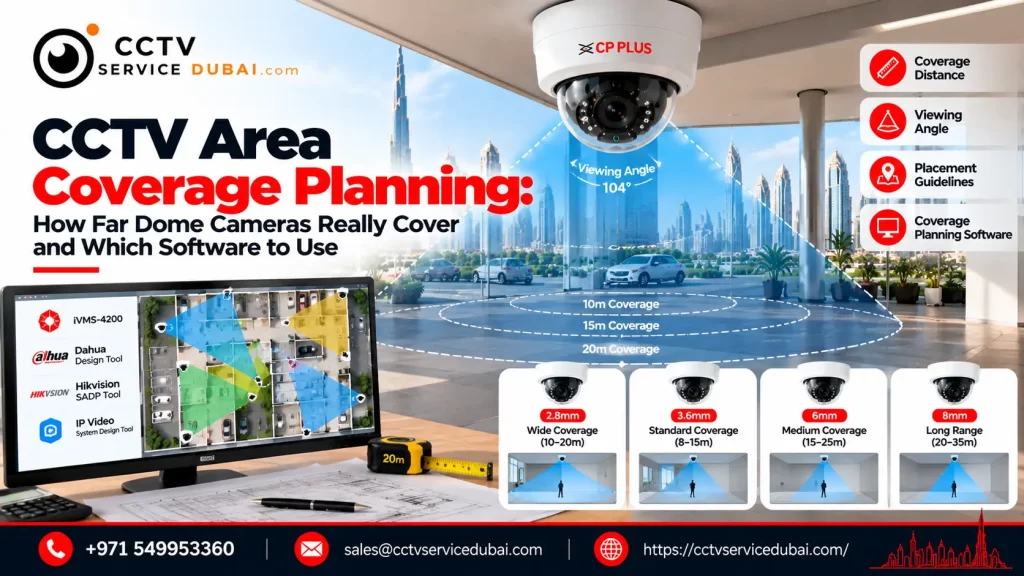
Planning effective CCTV area coverage is not simply about choosing a camera with a high megapixel count. A camera might show a wide area on screen but still fail to capture enough detail to identify a person or read a vehicle registration plate.For homes, offices, shops, warehouses, and commercial properties in the UAE, proper CCTV area coverage depends on the camera lens, resolution, mounting height, viewing angle, lighting, and the level of detail required. Dome cameras are popular for indoor and outdoor surveillance, but how far can they really see? And which software can help you plan camera positions before installation?This guide explains dome camera coverage, field of view, blind spots, camera placement, and CCTV coverage software to help you plan a more effective security system. What Does CCTV Area Coverage Actually Mean? CCTV area coverage describes the physical area visible to a camera and the level of detail it can capture within that area. There are two important considerations: Field of view (FOV): How much of the scene the camera can see. Useful image detail: Whether the footage provides enough information to detect movement, recognize a person, or identify a subject. A wide-angle camera may cover an entire room, but distant faces can appear too small for identification. A narrower lens may capture more detail in a specific location but leave other areas outside its view. Effective CCTV area coverage means balancing the viewing area with the detail needed for the security objective. Add Your Heading Text Here There is no single distance that applies to every dome camera. Actual coverage depends on the lens, sensor, resolution, lighting, camera position, and the size of the object being observed. Wide-angle dome cameras A wide-angle dome camera is useful for covering rooms, reception areas, corridors, and entrances. It can capture a broad scene from a suitable mounting position. However, widening the field of view spreads the available image detail across a larger area. People at the far end of a large room may be visible without being identifiable. Varifocal dome cameras A varifocal dome camera allows its lens to be adjusted across a supported focal-length range. This helps installers choose between a wider view and a narrower view with more detail concentrated on a particular area. For example, a reception desk may need a focused view of visitors, while a corridor may benefit from broader coverage. Infrared dome cameras Infrared-equipped dome cameras can support monitoring in low-light or dark environments, subject to their specifications. The manufacturer’s rated infrared distance is not a guarantee that a face will be identifiable at that distance. Scene reflectivity, ambient light, lens selection, and the available pixels all affect the result. When planning CCTV area coverage, select the camera according to the actual task rather than relying only on its advertised night-vision range. What Factors Affect CCTV Area Coverage? Several factors determine how much useful coverage a camera can provide. 1. Lens focal length: A shorter focal length generally produces a wider view, while a longer focal length provides a narrower, more magnified view. 2. Camera resolution: More pixels can provide greater detail, provided the lens, lighting, and recording configuration support it. 3. Mounting height: Mounting a camera too high can make faces harder to identify because the viewing angle becomes steeper. 4. Camera angle: The direction of the camera affects which objects are visible and how much detail is captured. 5. Lighting: Backlighting, glare, shadows, and poor night-time illumination can reduce image quality. 6. Obstacles: Walls, pillars, shelves, vehicles, and furniture can block important parts of the scene. A professional CCTV area coverage plan considers these factors together instead of choosing camera positions based only on convenience. What Is the Difference Between Detection, Recognition and Identification? Camera planning often uses the DORI framework: Detection, Observation, Recognition, and Identification. Axis Communications references the following pixel-density guidelines for visible-light surveillance cameras, based on the relevant IEC standard: DORI level Indicative pixel density Practical purpose Detection 25 pixels/metre Determine that someone or something is present Observation 63 pixels/metre Observe general characteristics and activity Recognition 125 pixels/metre Recognize a familiar person or object Identification 250 pixels/metre Support identification with greater image detail These are planning guidelines, not guarantees of identification. Actual results can vary with lighting, movement, image compression, camera positioning, and the target itself. For CCTV area coverage, decide what each camera must achieve. A camera monitoring general movement in a warehouse may have different requirements from one covering a cash counter or entrance. How Should You Plan Dome Camera Placement? Good placement reduces blind spots and makes better use of the available cameras. For homes and villas Prioritize main entrances, accessible windows, parking areas, and important perimeter access points. Indoor domes may suit hallways, entrances, and shared indoor spaces. For offices and retail shops Plan coverage for reception areas, entrances, corridors, cash-handling points, and restricted rooms, while respecting privacy requirements. For warehouses and factories Consider loading bays, stock areas, dispatch points, building entrances, and long corridors. Larger environments may need a mix of dome, bullet, and PTZ cameras. For every proposed location, check whether doors, shelving, columns, or vehicles could obstruct the view. An effective CCTV area coverage plan also considers overlapping views at critical entrances. This can preserve useful coverage if one camera is obstructed or temporarily unavailable. What Is CCTV Coverage Software? CCTV coverage software helps you plan camera positions and estimate what each camera will see before installing the equipment. Depending on the tool, it can support: Uploading floor plans or site maps Placing cameras at proposed locations Visualizing fields of view Estimating image detail at different distances Identifying potential blind spots Comparing cameras and lens options Estimating bandwidth and storage Preparing layouts and project documentation Using CCTV coverage software can reduce guesswork, improve quotations, and help installers explain the expected result to a customer. However, a software simulation is still a planning estimate. The completed installation must be tested under the actual lighting and site conditions. Which CCTV Coverage Software Should You
CP Plus Camera App for PC: Download, Setup, Live View & Playback Guide
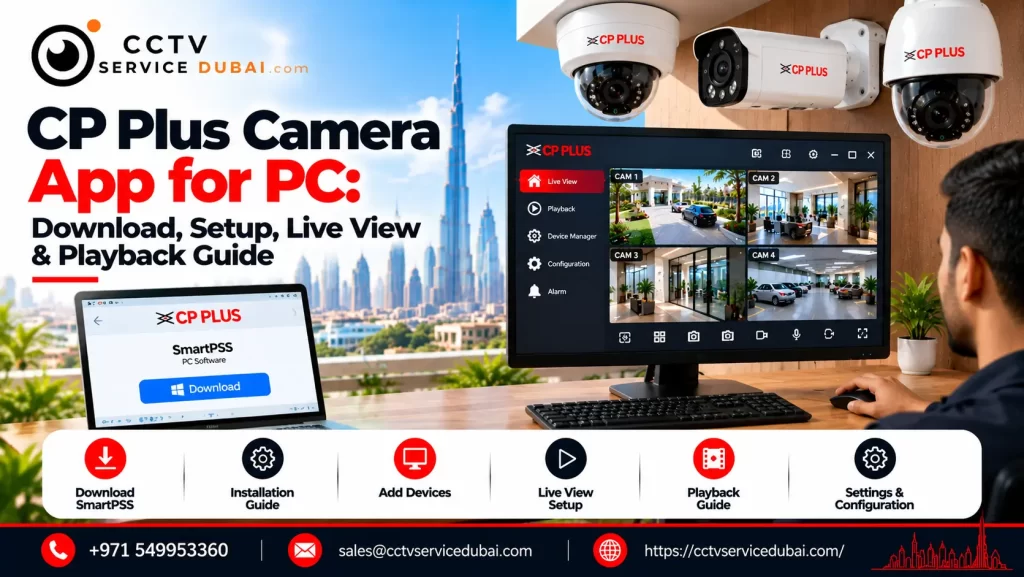
Monitoring CCTV cameras on a computer is useful when you need a larger display, multiple camera feeds, or quick access to recorded footage. If you have a CP Plus DVR, NVR, or IP camera, you need software compatible with your device to watch and manage the system from your Windows PC. The CP Plus camera app for PC is commonly searched for by homeowners, shop owners, office managers, and CCTV technicians who want to monitor their cameras without relying only on a mobile phone. CP Plus provides desktop software options, including KVMS Pro Lite, IP Finder, and Smart Player, through its official software portal. The correct choice depends on whether you need live viewing, device configuration, or playback of exported recordings. This guide explains how to download the CP Plus camera app for PC, connect your CCTV system, view multiple cameras, troubleshoot connection issues, and choose the right software. Which Is the Best CP Plus Camera App for PC? For a Windows computer, the most appropriate option depends on what you want to do. Software Main purpose When to use it KVMS Pro Lite Centralized CCTV management Live viewing, supported device management and playback CP Plus IP Finder Discovering devices on the local network Finding compatible cameras and checking IP addresses CP Plus Smart Player Playing exported recordings Reviewing saved CCTV video files Recorder web interface Accessing supported device functions through a browser Configuration and viewing on compatible models You can find these utilities through the official CP Plus software download page. The available software and supported versions may vary by product. For most users who want to monitor several cameras on a Windows computer, KVMS Pro Lite is the first option to investigate. How to Download the CP Plus Camera App for PC To download the CP Plus camera app for PC, use the manufacturer’s official software portal rather than third-party download websites. Follow these steps: Visit the CP Plus official software page. Locate KVMS Pro Lite in the software list. Check the available version and download information. Confirm that the software is compatible with your Windows version and CCTV device. Download and install the software according to the provided instructions. Launch the application and prepare your DVR, NVR, or supported IP camera details. If the software page does not display a working download link, use the CP Plus product documentation portal and search using your device’s model number. Important: Avoid downloading unknown executable files from unofficial websites. Verify the publisher and scan downloaded files before installation. Is gCMOB the Same as the CP Plus Camera App for PC? No. This is an important distinction. gCMOB is CP Plus’s mobile surveillance application for Android, while iCMOB is intended for iOS. Their mobile features include live view, playback, notifications, and supported device management. The official CP PLUS gCMOB listing on Google Play describes its surveillance functions. If you are looking for the CP Plus camera app for PC, do not assume that the mobile app is a native Windows application. Use KVMS Pro Lite or a supported browser interface for desktop access. An Android emulator is sometimes used to run mobile apps on a computer, but it is generally better to check the official PC software and model compatibility first. How to Set Up CP Plus CCTV Software on Windows Once you have installed the appropriate CP Plus camera app for PC, the next step is adding your CCTV device. You will generally need the recorder or camera’s IP address, username, password, and connection details. Step 1: Connect the recorder to your network Connect your CP Plus DVR or NVR to the router or network switch using an Ethernet cable. Ensure that the recorder is powered on and that the PC can reach the same network. Step 2: Find the recorder’s IP address If you do not know the device’s address, the official CP Plus software portal provides CPPLUS_IP Finder_Eng_Win. Use IP Finder to help discover compatible devices on the local network. If necessary, consult the recorder’s manual to configure network settings. Step 3: Add the device in KVMS Pro Lite Open KVMS Pro Lite and locate its device-management section. Depending on the software version, you may be able to add the recorder by IP address or domain and enter its port and login credentials. Save the configuration and check the connection status. Step 4: Open live view After the device connects, select the camera channels you want to view. Confirm that video appears correctly and that the stream remains stable. These steps provide the basic process for using the CP Plus camera app for PC. Menu names and supported device functions can differ between software releases. How to View Multiple CP Plus Cameras on a PC One advantage of desktop CCTV software is the ability to display several cameras on a single monitor. With a compatible CP Plus camera app for PC, you can organize supported camera feeds into a grid for monitoring entrances, parking areas, stockrooms, office corridors, or other locations. For a smoother experience: Use a PC that meets the software’s system requirements. Connect the computer through a reliable network. Reduce the number of simultaneous streams if video becomes choppy. Use a suitable substream for multi-camera viewing where supported. Select the main stream when higher image detail is needed. The actual number of simultaneous cameras depends on the software version, computer performance, network bandwidth, and camera specifications. How to Play Recorded CCTV Footage on a PC Live monitoring is only one part of a CCTV system. Reviewing recorded events is equally important. A compatible CP Plus camera app for PC may provide playback directly from the DVR or NVR. To review footage: Open the connected device in the CCTV client. Select the playback or record-search function. Choose the camera channel. Enter the date and time range. Search for available recordings. Play the required footage. If you have already exported a video file from the recorder, CP Plus Smart Player may be the appropriate utility for playback,
CP Plus Camera Installation Price in UAE: 2026 Cost Guide
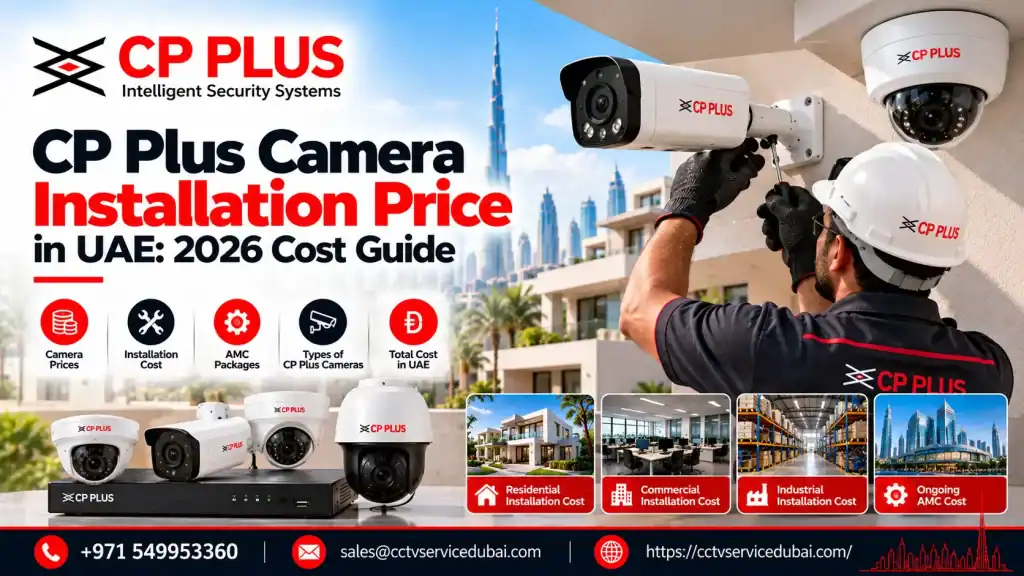
If you’re planning to install CCTV at your home, office, shop, or warehouse, understanding the CP Plus camera installation price helps you prepare a realistic budget before purchasing equipment. CP Plus offers different surveillance options, including analog HD cameras, IP cameras, Wi-Fi cameras, DVRs, NVRs, and multi-camera systems. The final cost depends on the camera type, number of cameras, recording equipment, cabling, storage, and installation requirements. In the UAE, you can find individual CP Plus cameras at relatively affordable prices, but a complete CCTV installation costs more because it may include a recorder, hard disk, cables, power supplies, configuration, and labour. This guide explains the CP Plus camera installation price in the UAE, compares equipment costs, and shows you what to check before accepting a quotation. How Much Does CP Plus Camera Installation Cost in UAE? The CP Plus camera installation price depends mainly on the number of cameras, system type, and complexity of the installation. For budgeting, the following ranges can provide a starting point. CCTV installation type Indicative budget 1–2 cameras for a small area AED 500–1,200 4-camera basic HD system AED 1,200–2,500 4-camera higher-resolution IP system AED 1,800–3,500 8-camera residential or small-business system AED 2,500–5,000 8–16 cameras for a larger business AED 4,000–8,000+ These are indicative UAE budgeting estimates, not verified CP Plus installation package quotations. Final prices depend on site conditions, equipment specifications, cable routes, storage, and labour. General UAE installation guides publish comparable ranges for standard CCTV packages. For a small apartment, a simple system may be sufficient. A villa with several outdoor entry points or a commercial property with longer cable routes can require a larger budget. Always request a site-specific quotation before making a final purchasing decision. What Is the Price of Individual CP Plus Cameras in UAE? Before calculating the CP Plus camera installation price, it helps to understand how much the individual components cost. Recent UAE retail listings provide the following examples: CP Plus product Example listed price CP Plus 2.4MP HD analog bullet camera AED 51 CP Plus 2MP HD IR network dome camera AED 92 CP Plus 5MP HD IR dome camera AED 113 CP Plus 4MP Wi-Fi camera AED 115 CP Plus 4-channel DVR AED 125 CP Plus 8-channel DVR AED 200–285 CP Plus 8-channel PoE NVR AED 520 These prices are listed by Cost to Cost UAE and may change with stock, promotions, and model availability. Important: These are examples of equipment prices, not complete installation costs. A DVR or NVR also needs compatible cameras and suitable storage if recordings are required. Cables, connectors, power supplies, configuration, and labour may be additional. The exact model matters because two cameras with similar resolution can differ in night vision, audio, weather protection, smart detection, and network compatibility. What Is Included in a CP Plus CCTV Installation Package? When comparing the CP Plus camera installation price, check whether the quotation covers the complete working system or only the cameras. A typical wired CCTV package may include: CP Plus cameras Compatible DVR or NVR Surveillance hard disk Video or network cables Power supplies and connectors Mounting accessories Camera installation Recorder configuration Mobile viewing setup Testing and basic user training Some quotations exclude storage, long cable runs, concealed wiring, additional switches, or civil work. A low initial quotation may therefore become more expensive once these items are added. Ask the installer to itemize the equipment, materials, installation labour, warranty, and any exclusions. This makes the CP Plus camera installation price easier to compare between suppliers. Does Analog or IP CCTV Affect the Installation Price? Yes. The system architecture can affect both equipment cost and installation work. Analog HD cameras Analog HD cameras connect to a compatible DVR, commonly using coaxial cabling. They may be cost-effective when upgrading an existing analog CCTV installation, particularly if usable cabling is already available. IP cameras IP cameras communicate over a network and commonly connect through Ethernet. A PoE system can carry data and power over one cable when compatible equipment is used. IP installations may require network switches, additional network configuration, or different cabling arrangements. Wi-Fi cameras Wi-Fi cameras can reduce the need for data cabling in suitable locations, but they still need power unless they are battery-powered. They may be convenient for apartments and smaller homes, although wireless signal strength and internet reliability must be considered. The right choice depends on the property and recording requirements—not simply the cheapest camera price. Which Factors Increase CP Plus Camera Installation Price? Several factors influence the total cost of a project. Number of cameras: More cameras require additional equipment, mounting points, and installation work. Resolution: Higher-resolution cameras can increase equipment and storage requirements. Cable distance: Long routes between cameras and the recorder may require more cable, containment, labour, or intermediate network equipment. Installation height: Cameras mounted on high walls, poles, or warehouse ceilings may require specialist access equipment. Hard disk capacity: The storage requirement depends on the number of cameras, resolution, frame rate, compression, and retention period.Remote viewing: Mobile access may require additional configuration, network troubleshooting, and account setup. Outdoor requirements: Weather-resistant cameras, protected cable entries, and suitable mounting accessories can affect the equipment cost.These details should be checked before agreeing on the final CP Plus camera installation price. How Much Does a Four-Camera CP Plus System Cost? A four-camera installation is often suitable for a small shop, apartment, or compact office.For example, a basic configuration might contain four analog cameras, a compatible four-channel DVR, a surveillance hard disk, cabling, power supplies, and installation.An IP system may instead use four network cameras, a compatible NVR, PoE equipment where needed, and Ethernet cabling.A complete four-camera system should therefore be priced as a package rather than calculated by multiplying the individual camera price by four.When checking the CP Plus camera installation price for four cameras, confirm whether the quotation includes recording equipment, storage, cable lengths, installation, and mobile viewing. How Much Does an Eight-Camera CP Plus System Cost? An eight-camera system can be more suitable for a villa, restaurant,
Dahua Camera Setup & Installation Guide: Mounting, ConfigTool & First Login

Installing a CCTV camera involves more than fixing it to a wall. You need to activate the device, configure its IP address, secure administrator access, and test live viewing and recording.A proper Dahua camera setup helps prevent common problems such as offline cameras, IP address conflicts, failed logins, and unclear footage. Whether you are installing a single home camera or a multi-camera system for a business, following the correct process makes maintenance easier.This guide covers Dahua camera setup, including physical installation, ConfigTool, first login, network configuration, dome cameras, NVR connection, and troubleshooting. What Do You Need Before Dahua Camera Setup? Before starting Dahua camera setup, confirm the exact camera model and prepare the equipment required.You may need a Dahua IP camera, compatible power supply or PoE switch, Ethernet cable, router, computer, mounting accessories, and an NVR if you plan to record footage centrally.Check the model’s power requirements, supported network connection, weather rating, lens, and installation manual. Not every Dahua camera supports Wi-Fi, PoE, or the same detection features.Planning these details beforehand makes Dahua CCTV camera installation more straightforward. How to Install a Dahua Camera Safely A successful Dahua camera setup starts by choosing the correct mounting location. Decide which entrance or area needs monitoring, then check the viewing angle before drilling. For outdoor installations, consider sunlight, glare, rain exposure, cable routing, and access for future maintenance. Select a stable mounting surface and appropriate fasteners. Dahua’s official dome network camera quick-start guide explains mounting templates, cable exits, and device installation. During Dahua CCTV camera installation, route cables through suitable containment and protect outdoor connections with compatible weatherproof accessories. Avoid leaving network connectors exposed to moisture. What Should You Check During Dahua Dome Camera Installation? For Dahua dome camera installation, use the supplied mounting template when available. Mark the fixing points, check for hidden wiring or pipes, route the cable through the intended opening, and secure the mounting base.Check any orientation markings in the product manual before fixing the camera housing. Adjust the lens to cover the required area and test the image before completing the installation.A good Dahua camera setup should also account for night-time reflections, glare, and blind spots. How to Use Dahua ConfigTool for First Login Dahua ConfigTool can discover compatible devices on the local network, initialize supported cameras, modify IP addresses, and assist with maintenance. For many installers, it is the easiest way to complete Dahua camera setup when a new camera is not yet accessible through a browser. Download the utility through Dahua’s official ConfigTool support page. Follow these general steps: Connect the camera and setup computer to the appropriate network. Open ConfigTool and refresh the device list. Find the camera by its model or IP address. Select an uninitialized device and follow the initialization prompts. Create a strong administrator password and enter the requested recovery information. Modify the camera’s IP settings to match your network plan and save the changes. Menu names vary by software version and camera firmware. For model-specific instructions, consult the official Dahua dome camera quick-start guid What Is the Dahua Camera Default IP Address? Some Dahua camera documentation lists 192.168.1.108 as an initial IP address. However, this should not be assumed for every model or previously configured device. During Dahua camera setup, use ConfigTool or the model’s manual to identify the camera’s actual IP address. Your computer must be able to communicate with the camera on the relevant network segment. If the devices are on different subnets, discovery and browser access may fail. For a permanent installation, plan a suitable static IP address or DHCP reservation. Avoid assigning an address that another device already uses, as this can create an IP conflict. How to Complete Dahua Camera First Login Once you identify the camera’s IP address, open a supported browser and enter the address to access its interface. Follow the on-screen prompts to initialize or log in. For a new device, create a strong, unique administrator password. If the camera was previously installed, you may need the existing credentials or Dahua’s official password-recovery process. A complete Dahua camera setup should include testing live view and checking the device’s date, time, time zone, network settings, and image quality. How to Configure the Dahua Camera Network Correct network settings are essential for Dahua camera setup, especially when the camera will connect to an NVR or a wider business network. Review these settings: IP address: Identifies the camera on the network. Subnet mask: Defines the local network segment. Gateway: Allows traffic to reach other networks when required. DNS: Supports name resolution for services that use it. DHCP or static IP: DHCP assigns settings automatically; static addressing can make devices easier to manage when planned correctly. When completing camera Dahua installation on an existing network, check that the camera’s IP address does not conflict with another device. If the camera connects to an NVR’s built-in PoE ports, its camera-side network may be separate from the main office network. Follow the recorder’s network design rather than forcing every device into the same IP range. How to Add a Dahua Camera to an NVR If you purchased a Dahua IP camera set with a network video recorder, configure the camera and then add it to the NVR. Connect the camera to the appropriate PoE port or network switch. Open the NVR’s camera or remote-device management menu. Search for the camera or enter its IP address. Provide the correct camera credentials. Save the configuration and confirm that the camera shows online. Test live view, recording, and playback. Not every camera and recorder combination supports the same resolution, protocol, or advanced features. Check compatibility before purchasing equipment. How to Secure and Maintain Dahua Cameras A secure Dahua camera setup involves more than the initial login. Change default credentials, restrict administrator access, disable unused services, and keep the camera on a suitably protected network.Obtain firmware only from official Dahua support resources for the exact model and region. Check compatibility before updating, and maintain stable power and network connectivity throughout the
Dahua WiFi Camera Setup: App Pairing, AI Features & IVS Rules

Installing a Wi-Fi CCTV camera is convenient, but getting reliable video, mobile alerts, and intelligent detection requires the correct configuration. Your camera needs to connect to the right network, communicate with the mobile app, and use detection settings suited to the area being monitored.Dahua WiFi camera setup can involve connecting a wireless camera through the DMSS app, configuring its network, enabling supported AI features, and testing notifications. For compatible professional cameras, you may also configure IVS rules for tripwire and intrusion detection.This guide explains Dahua WiFi camera setup step by step, including app pairing, Wi-Fi configuration, AI detection, IVS, desktop software, and common troubleshooting. What Do You Need Before Dahua WiFi Camera Setup? Before starting Dahua WiFi camera setup, check that your camera supports wireless networking and that you have the required accessories. Prepare: A compatible Dahua Wi-Fi camera The official DMSS mobile app Your Wi-Fi network name and password A smartphone connected to the appropriate network The camera’s power adapter A microSD card, if supported and local recording is required Not every Dahua camera supports Wi-Fi, and not every wireless camera supports the same AI or IVS functions. Check your exact model’s specifications first. Dahua’s official Wi-Fi camera quick-start guide explains wireless onboarding and device pairing through DMSS. How to Connect a Dahua Wi-Fi Camera to the DMSS App For supported wireless models, Dahua WiFi camera setup usually starts with adding the camera to DMSS. Step 1: Install the official app Install DMSS from the official app store and open it. Sign in or create an account if required by the current app workflow. Step 2: Add the camera Tap the + button and scan the QR code on the camera or its documentation. If scanning doesn’t work, use manual serial-number entry if your model supports it. Step 3: Select the correct setup method Follow the app’s instructions for wireless configuration. Some supported cameras use a temporary device hotspot during first-time setup; others offer a different onboarding process. Step 4: Connect to Wi-Fi Enter the correct network credentials when prompted. Keep your phone near the camera and router during pairing. Step 5: Test the connection Wait for the setup process to complete, then open live view. Confirm that the camera stays online and produces a clear image. Dahua’s official guide describes adding a wireless camera by QR code or serial number and switching to access-point configuration when required. What If Dahua WiFi Camera Setup Fails? If Dahua WiFi camera setup does not complete, check the basics before resetting the device. Incorrect password: Confirm the Wi-Fi password. Weak signal: Move the camera closer to the router or improve coverage. Network incompatibility: Check the supported Wi-Fi bands and security settings in the camera manual. Camera already configured: Follow the model-specific reset and reactivation procedure. App cannot find camera: Check that the camera is powered on and use the supported QR-code, hotspot, or wired setup method. Some cameras support initial configuration through a wired Ethernet connection before wireless settings are applied. Dahua’s DMSS user manual documents Wi-Fi, wired-network, and access-point configuration workflows. How to Complete Dahua WiFi Setup for Remote Viewing A successful Dahua WiFi camera setup should allow you to view the camera while away from home, provided the model and app support remote access. First, verify that the camera is connected to the correct Wi-Fi network and has internet access. Then check the device status in DMSS. Test these functions: Live viewing over mobile data Playback, if recording is enabled Motion alerts, if supported and configured Device status and connection recovery Account permissions for shared users If live view works only when your phone is on the same Wi-Fi network, review the camera’s connection status and the remote-access configuration supported by your device. Use a strong device password, protect your DMSS account, and share viewing access only with people who are authorized to use it. How to Complete Dahua AI Camera Setup Dahua AI camera setup involves configuring the intelligent detection features available on the selected camera or recorder. Depending on the model, these may include human detection, vehicle detection, motion detection, smart tracking, or perimeter protection. For example, a supported consumer Wi-Fi camera might distinguish people from general movement, while a professional camera could provide more specialized detection rules. During Dahua AI camera setup, consider: Identify the area you need to protect. Enable the relevant detection function. Adjust the detection zone, if supported. Set sensitivity according to the environment. Configure notification or recording actions. Test the feature using actual movement in the monitored area. Avoid setting sensitivity so high that trees, shadows, pets, or passing traffic generate excessive alerts. Feature availability differs across Dahua product families. What Is Dahua IVS Setup? Dahua IVS setup refers to configuring Intelligent Video System rules on compatible cameras, recorders, or supported video-management platforms. IVS can include rules such as: Tripwire: Detects a target crossing a configured line. Intrusion detection: Detects a target entering or leaving a defined region, according to the supported rule. Target filtering: On supported systems, filters events by target type or size. Dahua’s official IVS configuration documentation describes adding and enabling IVS rules, drawing tripwire lines, and configuring intrusion detection. How to configure an IVS tripwire For a compatible professional device, the general process is: Open the camera or recorder’s event settings. Navigate to the IVS or intelligent event section. Select the relevant camera channel. Add and enable a tripwire rule. Draw the line across the intended crossing point. Configure the permitted detection direction. Adjust supported target filters and sensitivity. Save the rule and test it in the actual scene. These menu names vary by firmware. Dahua IVS setup is not available on every Wi-Fi camera, so check the exact model before planning an installation around these features. Does Dahua IVS Work on Every Wi-Fi Camera? No. Basic Wi-Fi cameras may provide motion or human detection without supporting professional IVS tripwire and intrusion rules.Before purchasing equipment for Dahua AI camera setup or Dahua IVS setup, verify whether the feature
Dahua DVR, NVR & XVR Network Setup: Internet, P2P, DDNS & Remote Access

Setting up a CCTV recorder for remote viewing involves more than connecting it to a router. The recorder needs the correct network settings, an active internet connection, compatible cameras, and secure remote-access configuration.Dahua DVR internet setup allows homeowners and businesses to view supported CCTV cameras remotely, check recordings, and monitor their properties using a phone or computer.Whether you use a Dahua DVR for analog cameras, an NVR for IP cameras, or an XVR for a hybrid installation, this guide covers network configuration, P2P, DDNS, DMSS mobile access, and common connection problems. What Is Dahua DVR Internet Setup? Dahua DVR internet setup connects a compatible recorder to your local network and configures an appropriate method for remote access. The exact process depends on your recorder: DVR: Primarily records compatible analog CCTV cameras. NVR: Records IP cameras connected through a network. XVR: Supports compatible analog formats and, on supported models, IP cameras. Before starting Dahua DVR internet setup, check the recorder’s model, firmware, network ports, and supported remote-access features. What Do You Need Before Starting Dahua DVR Internet Setup? Prepare the following: Dahua DVR, NVR, or XVR Connected and functioning cameras Router with an active internet connection Ethernet cable Monitor and mouse for local configuration Recorder administrator credentials The current DMSS mobile application, if you need phone access Also confirm that the recorder’s date, time, and time zone are correct. For UAE installations, select Gulf Standard Time (UTC+4). During Dahua DVR internet setup, create a strong administrator password and configure available password-recovery options. Dahua’s initial setup instructions cover recorder activation, network configuration, camera registration, and recording schedules. How to Connect a Dahua DVR to the Internet The basic steps for Dahua DVR internet setup are similar across many recorder models, although menu names can vary. Step 1: Connect the recorder to your router Connect the recorder’s LAN port to an available router or network-switch port using an Ethernet cable. Make sure the link indicator is active where applicable. A connected cable alone does not guarantee that the recorder has internet access. Step 2: Open network settings Using the recorder’s local interface, navigate to its network or TCP/IP settings. Check the following: IP address Subnet mask Default gateway DNS server DHCP status These settings allow the recorder to communicate with devices on your local network and, where properly configured, with external services. Step 3: Enable DHCP or configure a static IP DHCP allows the router to assign the recorder an IP address automatically. It is often the easiest starting point for Dahua DVR internet setup. For a permanent installation, you may prefer a static IP address or a DHCP reservation so the recorder’s local address remains predictable. If you configure a static address, ensure it belongs to the correct subnet and is not already assigned to another device. Step 4: Test the connection Confirm that the recorder can reach the required network services. If it cannot connect, check the gateway, DNS settings, router configuration, and any firewall restrictions. Dahua’s network and P2P setup guide explains the basic network settings used before enabling remote access. How to Enable Dahua P2P for Remote Viewing For many users, P2P is the simplest option for Dahua DVR internet setup because it avoids the need to configure a traditional public IP address or manually forward recorder ports. Follow these steps Connect the recorder to the internet. Open its network settings. Find the P2P setting, usually under Network or Network Services. Enable P2P and save the configuration. Check that the P2P status changes to Online. Open DMSS and sign in to your account. Add the recorder using its QR code or serial number, as supported. Enter the recorder credentials and save the device. Test live view and recorded playback. Menu names vary by model and firmware. If the P2P status remains offline, resolve the network connection before trying to add the device again. Important for 2026: Dahua announced that, from 15 January 2026, users must sign in to an active DMSS account to add new devices through P2P. Follow the current official Dahua DMSS account-mode notice. A successful Dahua DVR internet setup should be tested using the mobile connection you intend to use, not just while the phone is connected to the same Wi-Fi network as the recorder. How to Complete Dahua NVR Network Setup Dahua NVR network setup follows a similar process, but you must also consider the network arrangement used by the IP cameras. For an NVR with built-in PoE ports, cameras may connect directly to the recorder. For an NVR using an external PoE switch, cameras usually connect through the site’s main network or a dedicated camera network. During Dahua NVR network setup: Configure the NVR’s LAN connection. Find the IP cameras through device search or enter their details manually. Initialize supported cameras if required. Enter the correct camera username and password. Add each camera and confirm its status is online. Configure recording schedules and storage. Enable and test remote access. If a camera is connected to a dedicated PoE interface, its IP range may differ from the main LAN. Do not change the camera’s network settings without checking the NVR’s network design. Dahua’s initial setup guide explains camera registration, network configuration, and recording schedules. How Does Dahua XVR IP Camera Setup Work? Dahua XVR IP camera setup depends on the exact XVR model and its supported IP-channel capacity. Some XVRs support a mixture of analog inputs and additional IP cameras, while others have different limitations. Before adding an IP camera, check: Maximum supported IP camera count Incoming bandwidth Supported resolution Camera protocol compatibility Available network interfaces Existing analog channel usage Once compatibility is confirmed, connect the IP camera to the appropriate network, locate it through the XVR’s device-search interface, and add it with the correct credentials. After completing Dahua XVR IP camera setup, test live video, recording, and playback for both analog and IP channels. What Is DDNS in Dahua DVR Internet Setup? DDNS, or Dynamic Domain Name System, links a hostname to an
Hikvision ANPR Setup, PTZ Installation & AX Pro Alarm: Specialist Camera Guide

Not every CCTV project needs the same camera or security configuration. A parking entrance may require automatic number plate recognition, a large warehouse may need a PTZ camera for long-distance monitoring, and an office may need fixed cameras combined with an intrusion alarm.Hikvision ANPR setup focuses on capturing and recognizing vehicle registration plates. PTZ installation provides remotely controlled camera movement and zoom, while AX PRO adds wireless intrusion detection for doors, windows, and other protected areas.For UAE homes and businesses, selecting the right equipment and configuring each component correctly helps create a more reliable security system. This guide covers installation, network configuration, camera positioning, alarm setup, testing, and common mistakes. What Is Hikvision ANPR Setup? Hikvision ANPR setup involves configuring a compatible Automatic Number Plate Recognition camera to detect vehicles, capture registration plates, and recognize plate characters. It is commonly used at: Residential community entrances Office parking facilities Warehouse gates Commercial building entrances Vehicle access control points Industrial compounds A suitable ANPR camera can capture plate information and, when configured with compatible software and access-control equipment, help manage vehicle entry. Hikvision’s official ANPR documentation covers installation, imaging requirements, configuration, plate recognition, and troubleshooting. How to Complete Hikvision ANPR Setup A successful Hikvision ANPR setup begins with the vehicle lane, not the camera menu. Camera position, plate angle, lighting, and vehicle speed directly affect recognition performance. 1. Choose the correct mounting position Identify the direction vehicles approach the camera and where their plates will be visible. Avoid placing the camera too far from the capture area or at a steep angle. Hikvision’s guidance for certain ANPR models with 2.8–12 mm varifocal lenses recommends a capture distance of approximately 3–5 metres and an installation height of 1.3–1.5 metres. These figures are model-specific guidance, not universal requirements for every ANPR camera. Check the manual for your exact model. 2. Connect power and network Connect the camera using the supported Ethernet and power arrangement. PoE can provide power and network connectivity through one cable if the camera supports it. Assign the appropriate IP settings and confirm that the camera is reachable through the network. 3. Configure plate recognition Open the camera’s web interface or supported management software. Depending on the model, configure the applicable vehicle detection mode, country or region settings, capture parameters, and recognition options. 4. Set detection rules and alerts Configure capture schedules and supported linkage actions. Compatible systems may support allowlists, blocklists, event recording, or gate-control integrations. Complete several test passes using vehicles approaching from the actual driving direction. Check the captured plate images and recognized characters before putting the system into operation. Why Do ANPR Cameras Fail to Recognize Plates? Even a capable camera can produce inconsistent results if the installation conditions are unsuitable. During Hikvision ANPR setup, pay attention to: Plate angle: Excessive horizontal or vertical tilt can affect recognition. Lighting: Glare, overexposure, and poorly managed infrared illumination can obscure characters. Focus: The plate must be sharp at the actual capture distance. Shutter speed: Moving vehicles can create motion blur if the settings are unsuitable. Vehicle speed: Faster vehicles require an appropriate capture configuration. Detection area: The recognition region should align with the intended lane. If recognition is unreliable, review the captured images and adjust one setting at a time. Hikvision’s ANPR configuration guide explains detection modes, capture configuration, and common recognition problems. What Is Hikvision PTZ Installation? PTZ cameras provide pan, tilt, and zoom functions, allowing authorized operators to change their viewing direction and magnification remotely. Hikvision PTZ installation is useful for large parking areas, industrial facilities, warehouses, and outdoor perimeters where operators need to inspect multiple areas. A professional installation should include: Selecting a suitable mounting bracket and support structure. Checking the mount’s load capacity and environmental suitability. Installing the camera according to the manufacturer’s instructions. Connecting power and network equipment. Configuring the camera’s IP address and credentials. Testing pan, tilt, zoom, focus, and live video. Use a suitable mounting point that minimizes vibration. For outdoor installations, check the camera’s weather rating, cable protection, grounding, and surge protection requirements. Hikvision’s Network PTZ Camera Quick Start Guide provides model-specific wiring and network setup guidance. How to Complete Hikvision PTZ Setup After Hikvision PTZ installation, configure the camera so operators can use its movement and zoom functions correctly. Important settings may include: PTZ movement and speed Optical zoom and focus Preset positions Patrols or tours Motion or event-based actions Recording and event schedules Compatible NVR or video-management integration Create presets for important locations, such as the main gate, loading area, or parking entrance. Test each preset and confirm that the camera returns to the intended view. A PTZ camera should not be treated as a complete replacement for fixed cameras where multiple areas must remain under continuous observation. When a PTZ camera turns away, other locations may no longer be in its field of view. Hikvision Turret Camera Installation: What Should You Check? A turret camera is a fixed camera commonly used for offices, corridors, entrances, and selected outdoor locations.Hikvision turret camera installation generally involves marking the mounting holes, routing the cables, securing the mounting base, connecting power and network, and adjusting the viewing angle.Before drilling, check for hidden wiring and pipes. Use the supplied mounting template where provided, and ensure that the installation surface and fasteners are suitable for the camera.For exterior mounting, protect cable connections against moisture and avoid aiming infrared illumination directly at nearby reflective surfaces.After installation, test daytime and nighttime footage to confirm that the intended area is covered. Hikvision Bullet Camera Installation for Outdoor Security Bullet cameras are often selected for building perimeters, entrances, gates, and other areas that benefit from a fixed viewing direction. Hikvision bullet camera installation should begin by determining the desired field of view, viewing distance, and mounting height. Choose the lens based on the required coverage rather than mounting the camera first and trying to correct the image later. The installer should also verify: Suitable wall or pole mounting Correct weather-resistant cable entries Power or PoE compatibility Network
Hikvision NVR Network Setup: IP Cameras, Wi-Fi, Remote Access & the Mobile App

Setting up a CCTV system involves more than connecting cameras to a recorder. Your NVR must communicate with the IP cameras, have the correct network settings, record footage properly, and connect securely to your phone if remote viewing is required.Hikvision NVR network setup is an important part of building a reliable CCTV system for villas, offices, shops, warehouses, and commercial properties in the UAE.Whether you’re configuring a new recorder, connecting a 5MP IP camera, setting up Wi-Fi cameras, or enabling mobile viewing, this guide explains the essential steps and common problems to check. What Do You Need for Hikvision NVR Network Setup? Before starting Hikvision NVR network setup, prepare the equipment required for your camera configuration. You may need: A compatible Hikvision NVR Compatible IP cameras Ethernet cables and a router or network switch A PoE switch or NVR with built-in PoE ports, if required A monitor and mouse for local configuration Internet access for supported remote-viewing services The administrator credentials for the NVR and cameras First, check whether your NVR has built-in PoE ports. On supported models, cameras can connect directly to those ports. Other cameras may connect through an external network switch. The menu names and available features can differ by NVR model and firmware version, so use the relevant official Hikvision documentation for your equipment. How to Connect IP Cameras to a Hikvision NVR A successful Hikvision NVR network setup starts with connecting the cameras correctly. Step 1: Connect the NVR to the network Connect the NVR’s LAN port to your router or network switch using an Ethernet cable. Connect the monitor and power on the equipment. Step 2: Connect the cameras For an NVR with built-in PoE, connect compatible PoE cameras to the designated camera ports. If you’re using an external PoE switch, connect the cameras to that switch and configure the network connections according to the NVR’s supported network architecture. Step 3: Find the cameras Open the NVR’s camera management or IP camera menu. Search for available cameras and select the compatible devices you want to add. Hikvision’s official NVR quick-start documentation explains how to discover and add supported network cameras. Step 4: Check the camera status Confirm that each camera appears online and displays a clear live image. If a camera shows an offline or incorrect-password message, check its credentials, network connection, and activation status. For many systems, cameras connected to an NVR’s built-in PoE network use a different network segment from devices connected to the home or office LAN. Follow the recorder’s own network design rather than assuming every device must use the same IP range. How to Configure Hikvision NVR Network Settings Correct IP addressing is essential for Hikvision NVR network setup. Open the NVR’s network settings and review the following: IP address: Identifies the recorder on the network. Subnet mask: Defines the local network range. Default gateway: Allows communication with networks beyond the local subnet. DNS server: Helps resolve service addresses. DHCP: Allows the recorder to obtain network settings automatically when a DHCP server is available. Hikvision documents these settings in its network video recorder manual. DHCP is convenient for initial setup. For permanent installations, a properly planned static IP address or DHCP reservation can make the recorder easier to manage. Avoid assigning an IP address already used by another device. An IP conflict can interrupt communication and make the recorder or camera appear offline. How to Add an IP Camera to a Hikvision NVR During Hikvision NVR network setup, you may need to add a camera manually if automatic discovery doesn’t work. The general process is: Open the NVR’s IP camera management menu. Select an available channel. Enter the camera’s IP address. Select the appropriate protocol. Enter the camera’s username and password. Save the configuration and check the connection status. The camera must be activated and reachable through the relevant network interface. Hikvision’s official guide to adding an IP camera with a custom protocol explains the manual process. If the camera is from another manufacturer, confirm that the NVR supports its protocol and required features. Compatibility may vary for advanced functions such as analytics, audio, and camera configuration. How to Set Up Wi-Fi Cameras with a Hikvision NVR Hikvision NVR network setup can also involve supported Wi-Fi cameras, but the process depends on the equipment. Some Wi-Fi NVR kits are designed to connect their supplied cameras automatically. Other compatible cameras may need to be configured separately before they can be added to the recorder. Hikvision’s Wi-Fi NVR guide covers wireless-kit cameras and camera discovery. For a standalone Wi-Fi camera, verify that the camera supports the intended network and that the NVR can connect to it. A wireless camera still needs power unless it is designed for battery operation. Also consider Wi-Fi signal strength, wall materials, interference, and distance from the access point. If the connection is unreliable, wired Ethernet or a suitable network design may be more dependable. How to Complete Hik-Connect Mobile App Setup One of the most useful parts of Hikvision NVR network setup is enabling remote viewing on your phone. Hik-Connect allows supported devices to be accessed through the mobile app and associated platform service. Step 1: Confirm internet connectivity Connect the NVR to the router and verify that its network settings are correct. Step 2: Enable Hik-Connect On supported models, open the network or platform-access settings and enable Hik-Connect. You may need to agree to the relevant service terms and create a device verification code. Step 3: Add the NVR to your account Install the official Hik-Connect app, sign in, and add the recorder using the supported QR-code or device-adding method. Enter the verification code if prompted. Step 4: Test live view and playback Open the device in the app and check that the cameras display correctly. Test playback too, because working live video does not necessarily mean recording is configured properly. The exact settings vary by model and firmware. See Hikvision’s official Hik-Connect setup instructions. For security, use a strong administrator password, protect your