
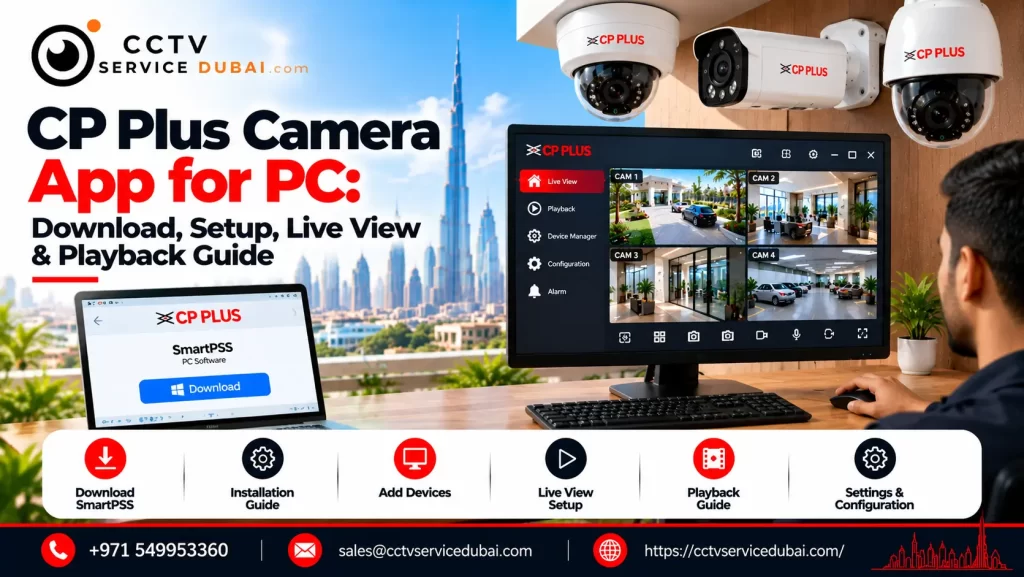
Monitoring CCTV cameras on a computer is useful when you need a larger display, multiple camera feeds, or quick access to recorded footage. If you have a CP Plus DVR, NVR, or IP camera, you need software compatible with your device to watch and manage the system from your Windows PC.
The CP Plus camera app for PC is commonly searched for by homeowners, shop owners, office managers, and CCTV technicians who want to monitor their cameras without relying only on a mobile phone.
CP Plus provides desktop software options, including KVMS Pro Lite, IP Finder, and Smart Player, through its official software portal. The correct choice depends on whether you need live viewing, device configuration, or playback of exported recordings.
This guide explains how to download the CP Plus camera app for PC, connect your CCTV system, view multiple cameras, troubleshoot connection issues, and choose the right software.
Table of Contents
ToggleWhich Is the Best CP Plus Camera App for PC?
For a Windows computer, the most appropriate option depends on what you want to do.
Software | Main purpose | When to use it |
|---|---|---|
KVMS Pro Lite | Centralized CCTV management | Live viewing, supported device management and playback |
CP Plus IP Finder | Discovering devices on the local network | Finding compatible cameras and checking IP addresses |
CP Plus Smart Player | Playing exported recordings | Reviewing saved CCTV video files |
Recorder web interface | Accessing supported device functions through a browser | Configuration and viewing on compatible models |
You can find these utilities through the official CP Plus software download page. The available software and supported versions may vary by product.
For most users who want to monitor several cameras on a Windows computer, KVMS Pro Lite is the first option to investigate.
How to Download the CP Plus Camera App for PC
To download the CP Plus camera app for PC, use the manufacturer’s official software portal rather than third-party download websites.
Follow these steps:
Visit the CP Plus official software page.
Locate KVMS Pro Lite in the software list.
Check the available version and download information.
Confirm that the software is compatible with your Windows version and CCTV device.
Download and install the software according to the provided instructions.
Launch the application and prepare your DVR, NVR, or supported IP camera details.
If the software page does not display a working download link, use the CP Plus product documentation portal and search using your device’s model number.
Important: Avoid downloading unknown executable files from unofficial websites. Verify the publisher and scan downloaded files before installation.
Is gCMOB the Same as the CP Plus Camera App for PC?
No. This is an important distinction.
gCMOB is CP Plus’s mobile surveillance application for Android, while iCMOB is intended for iOS. Their mobile features include live view, playback, notifications, and supported device management. The official CP PLUS gCMOB listing on Google Play describes its surveillance functions.
If you are looking for the CP Plus camera app for PC, do not assume that the mobile app is a native Windows application. Use KVMS Pro Lite or a supported browser interface for desktop access.
An Android emulator is sometimes used to run mobile apps on a computer, but it is generally better to check the official PC software and model compatibility first.
How to Set Up CP Plus CCTV Software on Windows
Once you have installed the appropriate CP Plus camera app for PC, the next step is adding your CCTV device.
You will generally need the recorder or camera’s IP address, username, password, and connection details.
Step 1: Connect the recorder to your network
Connect your CP Plus DVR or NVR to the router or network switch using an Ethernet cable.
Ensure that the recorder is powered on and that the PC can reach the same network.
Step 2: Find the recorder’s IP address
If you do not know the device’s address, the official CP Plus software portal provides CPPLUS_IP Finder_Eng_Win.
Use IP Finder to help discover compatible devices on the local network. If necessary, consult the recorder’s manual to configure network settings.
Step 3: Add the device in KVMS Pro Lite
Open KVMS Pro Lite and locate its device-management section.
Depending on the software version, you may be able to add the recorder by IP address or domain and enter its port and login credentials.
Save the configuration and check the connection status.
Step 4: Open live view
After the device connects, select the camera channels you want to view. Confirm that video appears correctly and that the stream remains stable.
These steps provide the basic process for using the CP Plus camera app for PC. Menu names and supported device functions can differ between software releases.
How to View Multiple CP Plus Cameras on a PC
One advantage of desktop CCTV software is the ability to display several cameras on a single monitor.
With a compatible CP Plus camera app for PC, you can organize supported camera feeds into a grid for monitoring entrances, parking areas, stockrooms, office corridors, or other locations.
For a smoother experience:
Use a PC that meets the software’s system requirements.
Connect the computer through a reliable network.
Reduce the number of simultaneous streams if video becomes choppy.
Use a suitable substream for multi-camera viewing where supported.
Select the main stream when higher image detail is needed.
The actual number of simultaneous cameras depends on the software version, computer performance, network bandwidth, and camera specifications.
How to Play Recorded CCTV Footage on a PC
Live monitoring is only one part of a CCTV system. Reviewing recorded events is equally important.
A compatible CP Plus camera app for PC may provide playback directly from the DVR or NVR.
To review footage:
Open the connected device in the CCTV client.
Select the playback or record-search function.
Choose the camera channel.
Enter the date and time range.
Search for available recordings.
Play the required footage.
If you have already exported a video file from the recorder, CP Plus Smart Player may be the appropriate utility for playback, depending on the file format.
You can find Smart Player through the official CP Plus software portal.
Always test playback before relying on the system for important security recordings.
Can You Access CP Plus Cameras Remotely from a PC?
Yes, remote access may be possible when your recorder and chosen software support it.
The available method depends on your equipment and network configuration. Options may include a supported web interface, a compatible desktop client, or the recorder’s supported remote-access service.
For CP Plus camera app for PC remote viewing, first confirm that the recorder is online and that local viewing works correctly.
Then check the supported remote-access method in your model’s documentation. Avoid opening unnecessary ports on your router. Use strong passwords and secure access settings to reduce the risk of unauthorized viewing.
Common CP Plus Camera App for PC Problems
If your software does not connect or display video, troubleshoot the problem step by step.
Problem | What to check |
|---|---|
Software cannot find the DVR | Ethernet connection, IP address and network range |
Login fails | Username, password and device credentials |
Device shows offline | Recorder network settings, gateway and internet connection |
Video keeps buffering | Network performance, stream selection and PC resources |
Playback is unavailable | Recording schedule, hard disk status and selected time range |
Software will not install | Windows compatibility, installer source and system requirements |
For model-specific instructions, use the CP Plus product documentation portal to find the appropriate user manual.
Is the CP Plus Camera App for PC Free?
CP Plus lists KVMS Pro Lite, IP Finder, and Smart Player in its official software catalogue. However, you should verify the current download terms and the software version applicable to your model.
Also distinguish between desktop monitoring software and other potential costs, such as internet access, storage upgrades, installation, or technical support.
For a system that needs professional configuration, make sure the quotation specifies whether software installation, device connection, playback testing, and user training are included.
Final Takeaway
The CP Plus camera app for PC can help you view CCTV footage on a larger screen, manage supported devices, and review recordings from a Windows computer.
For centralized monitoring, start by checking KVMS Pro Lite. Use CP Plus IP Finder when you need help locating compatible devices on your local network, and consider Smart Player for exported recordings.
Download software from official CP Plus resources, confirm compatibility with your DVR, NVR, or IP camera, and secure your device credentials before enabling remote access.
Need CP Plus CCTV Setup in Dubai?
CCTV Service Dubai provides CCTV installation, DVR and NVR configuration, desktop viewing setup, network troubleshooting, structured cabling, and CCTV maintenance for residential and commercial properties.

Afsal, SEO Content Writer at CCTV Service Dubai
Afsal writes the guides, cost breakdowns, and compliance explainers published on CCTV Service Dubai. His work covers CCTV camera installation, security system planning, and regulatory requirements across Abu Dhabi, Dubai, and the wider UAE, researched and written in close collaboration with the company’s installation and compliance team to keep every article accurate and current.
With a background in SEO and digital content across multiple UAE-based businesses, Afsal focuses on turning technical, regulation-heavy topics — ADMCC and SIRA requirements, camera specifications, storage and retention rules, installation costs — into guides that are actually useful for someone trying to make a decision, not just technically correct.
What Afsal Covers
CCTV camera installation guides for Abu Dhabi, Dubai, and Sharjah
ADMCC and SIRA compliance explainers
CCTV system costs, camera types, and equipment comparisons
Security camera maintenance and best practices
Buying guides for businesses choosing an installation company
How This Content Is Put Together
Every guide is developed alongside CCTV Service Dubai’s installation team, who bring the hands-on project experience — 5+ years in the field and 500+ completed installations across the UAE. Afsal’s role is to research, verify, and write that experience into guides that are clear, accurate, and genuinely helpful, rather than generic content pulled from unrelated sources.